Using tags you can limit media that belong to the same playlist to play on specific screens only as in the below example.
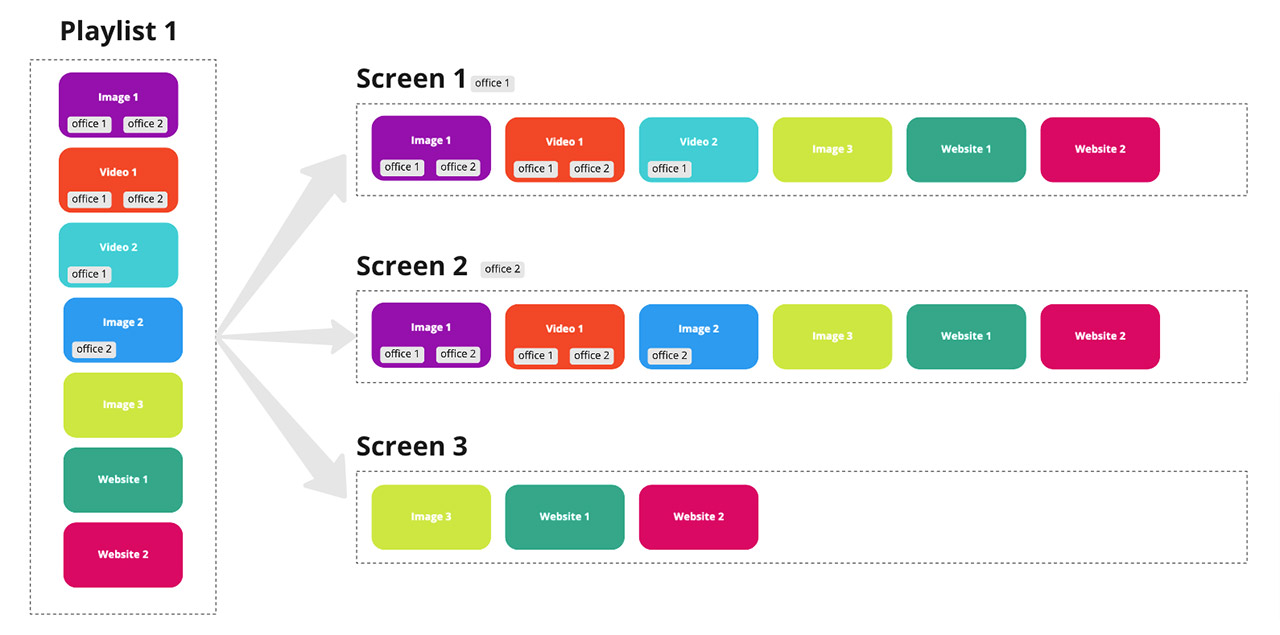
Playlist 1 has multiple media with multiple tags, and is published to 3 screens where Screen 1 has the tag “office1”, screen 2 has the tag “office 2” and screen 3 without tags
Each screen will play all media that have matching tags or media without tags as below diagram:
To set up media and screen tags follow the below steps
-
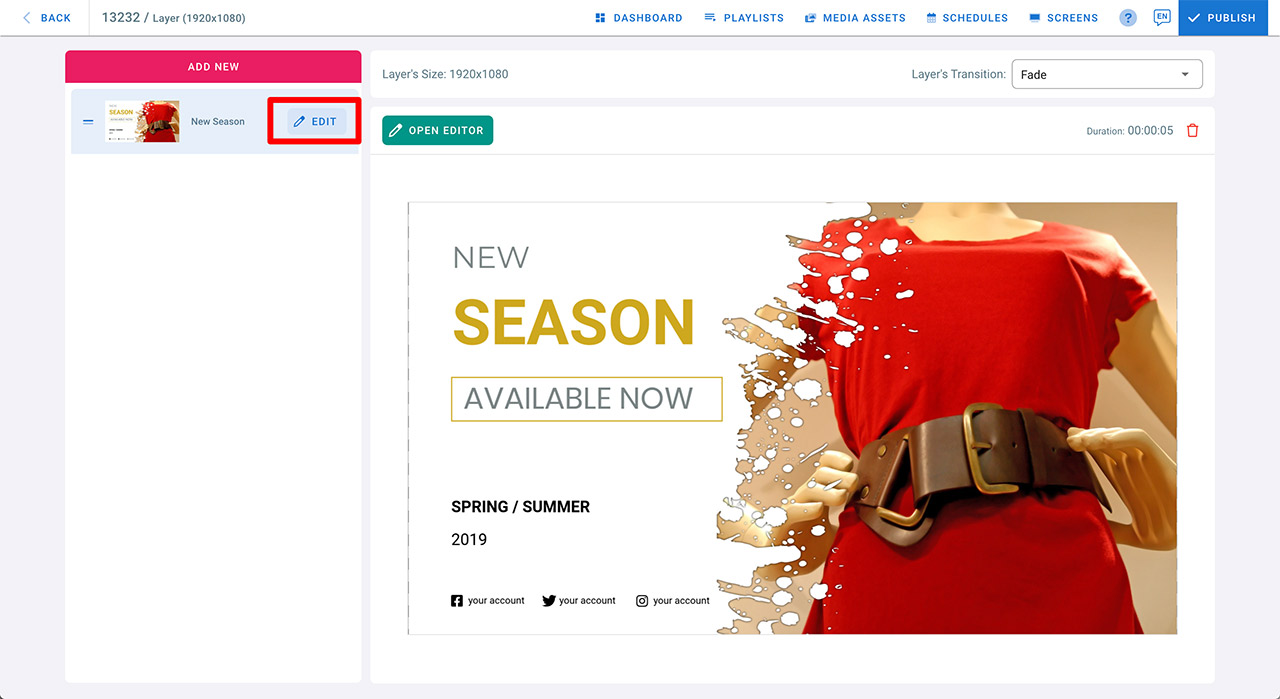
Open playlist media settings (open a playlist > choose layer > click edit on a media)
-
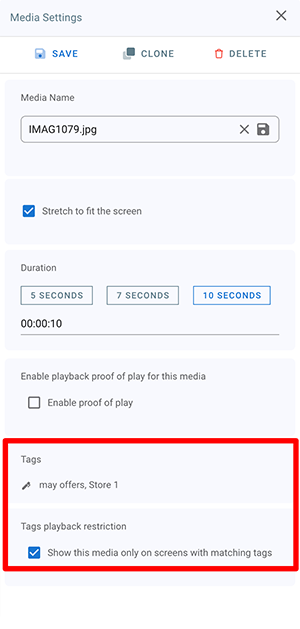
Add one or more tags
-
Enable “Tags playback restriction”
-
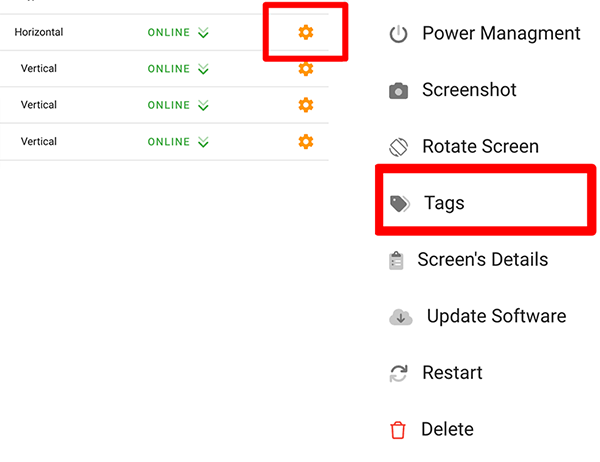
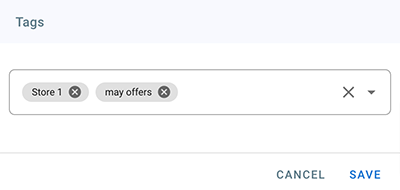
Go to the screens page and open screen tags ( screens > click on orange cog > Tags )
-
Enter one or more tags. Media with matching tags will be displayed on this screen.
-
Click “Publish” Media with matching tags will be sent to the screen